1Before you begin
You'll need:
- An iPad running iPadOS 16 or newer — any standard iPad from 2017 onward. It doesn't need to be new; a good second-hand iPad is perfect for a permanent station.
- An audio lead from the iPad to your PA amplifier's line input — a 3.5 mm aux lead, or a USB-C / Lightning audio adapter for iPads without a headphone jack. Full details, adapters and wiring are in the Installation Guide.
- Power — the iPad stays plugged in permanently.
- The school's Wi-Fi — only needed for the iPhone remote and Apple Music. Bells, your own music and saved announcements all run entirely offline.
2Install and first launch
- On the iPad, open the App Store and install School Bell & Music Scheduler.
- Open the app. Your 7-day free trial starts automatically — every feature is unlocked, no account and no sign-up.
- Along the bottom you'll find the six tabs the whole app lives in: Status, Schedule, Music, Bells, Holidays and Settings.

The screen stays awake on its own while the app is open — there's nothing to configure for that.
3School name and theme
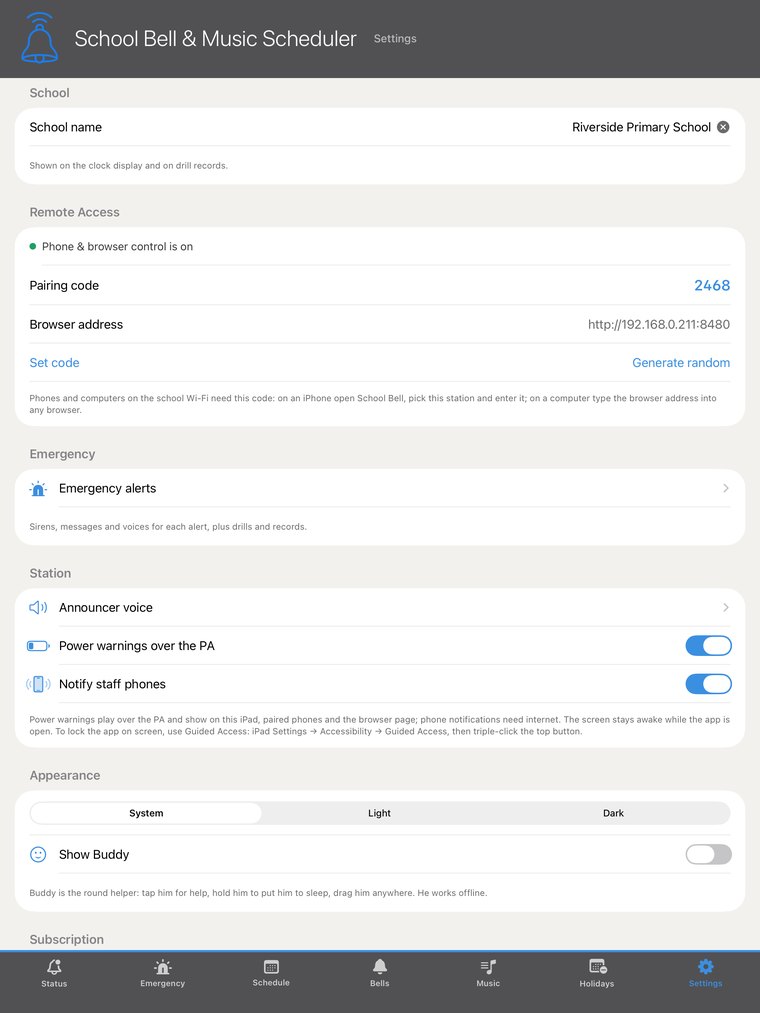
- Go to Settings and type your school's name under School — e.g. Riverside Primary School. This is what appears in lights on the idle display.
- Under Appearance, choose Light, Dark or System to suit the room the iPad lives in.
4Build the weekly timetable
The Schedule tab is the heart of the app: a weekly timetable of bell and music events. Pick a day across the top to see exactly what will ring on that day.
Adding an event
- Tap the + button to open Add Event.
- Choose the Type — Bell or Music.
- Choose the days: a single weekday, Mon–Fri, Every day, or a one-off single date. You can add the same event to several days at once.
- Set the Time and tap Save.
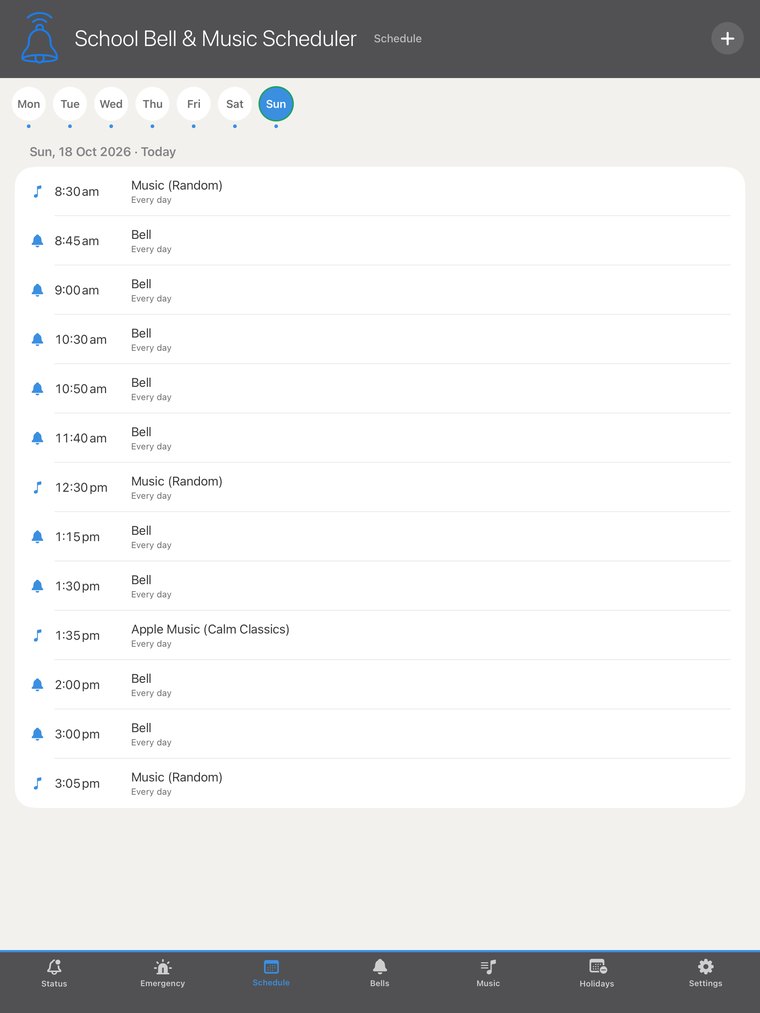
A normal school builds Monday-to-Friday once, gives Friday its own early finish if needed, and never touches it again. There's no limit on events per day.
5One-off changes — without touching the routine
Assembly moved? Early finish for sports day? You never need to edit the weekly routine for a one-day change.
- Change one date only: tap the event and choose Just This Day. Move the time, change the song, swap a bell for music — it applies to that date alone, and you can Revert it anytime. The event shows as "changed just this day".
- Change it every week: tap the event and choose Edit all occurrences.
- Skip one date: swipe the event (or open it) and choose Skip this day entirely — the event won't play on that date, and returns to normal the following week.
- Delete: Delete all occurrences removes it from the routine completely.
6Bells
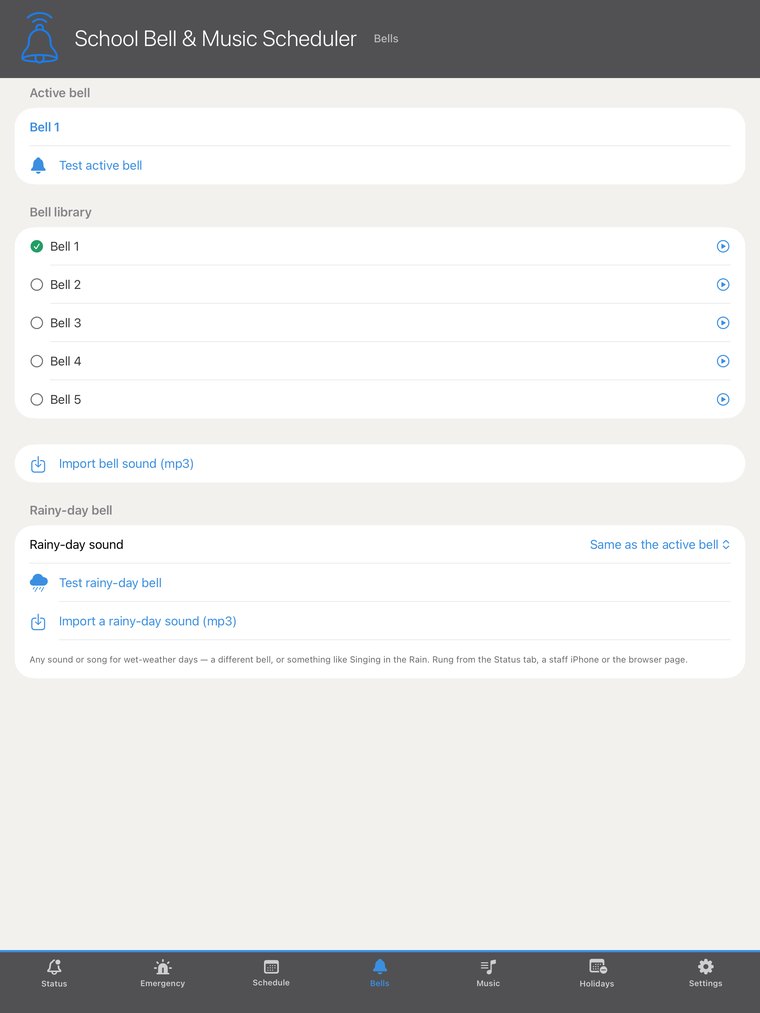
The Bells tab holds the bell library. Every scheduled bell rings the active bell, so the whole school always sounds consistent — change the active bell once and every event follows.
- Tap any bell in the library to make it the active bell, and Test active bell to hear it through your speakers.
- Import bell sound (mp3) brings in your own sound — your school's traditional bell, a chime, anything.
- Ring bell now rings a bell manually at any moment — and there's a separate rainy day bell for wet-weather timetables, so everyone knows the difference by sound.
7Music
The Music tab is the school's own music library, stored on the iPad — it plays with no internet at all.
Importing music
- Tap Import album folder… to bring in a whole album at once — its songs and cover art import together. Or use Import songs… for individual mp3s.
- If an album's artwork is missing or wrong, tap Set cover… and pick a picture.
Scheduling music
Music schedules exactly like a bell — add a Music event in the Schedule tab, then:
- Pick a specific Song, or choose Random / Play any track for variety.
- Limit play time plays for a set number of minutes — e.g. ten minutes of morning music that stops itself. Leave it off and the song plays through once.
- Ring bell before music — the attention-getter: bell first, music immediately after.
8Apple Music (optional)
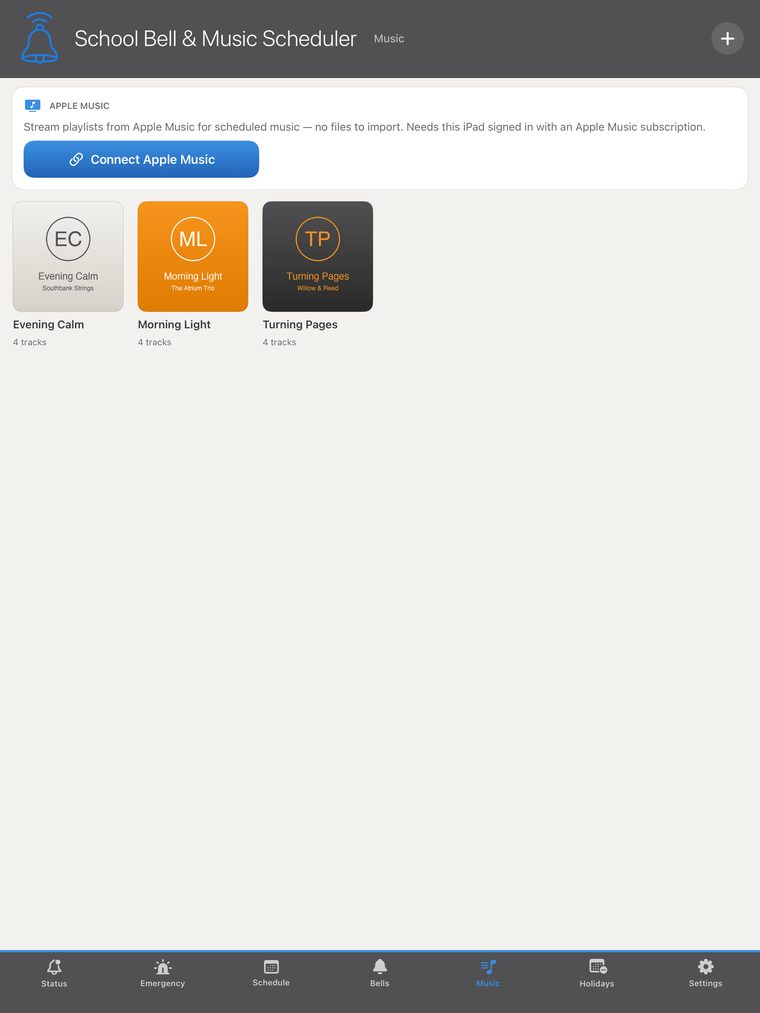
If the iPad is signed in to an Apple Music subscription, the station can stream playlists instead of (or as well as) using imported files.
- In the Music tab, tap Connect Apple Music and allow access. The section shows Connected.
- When adding a Music event, set the Source to Apple Music, then Choose a playlist… — the event streams that playlist at its scheduled time.
9Holidays
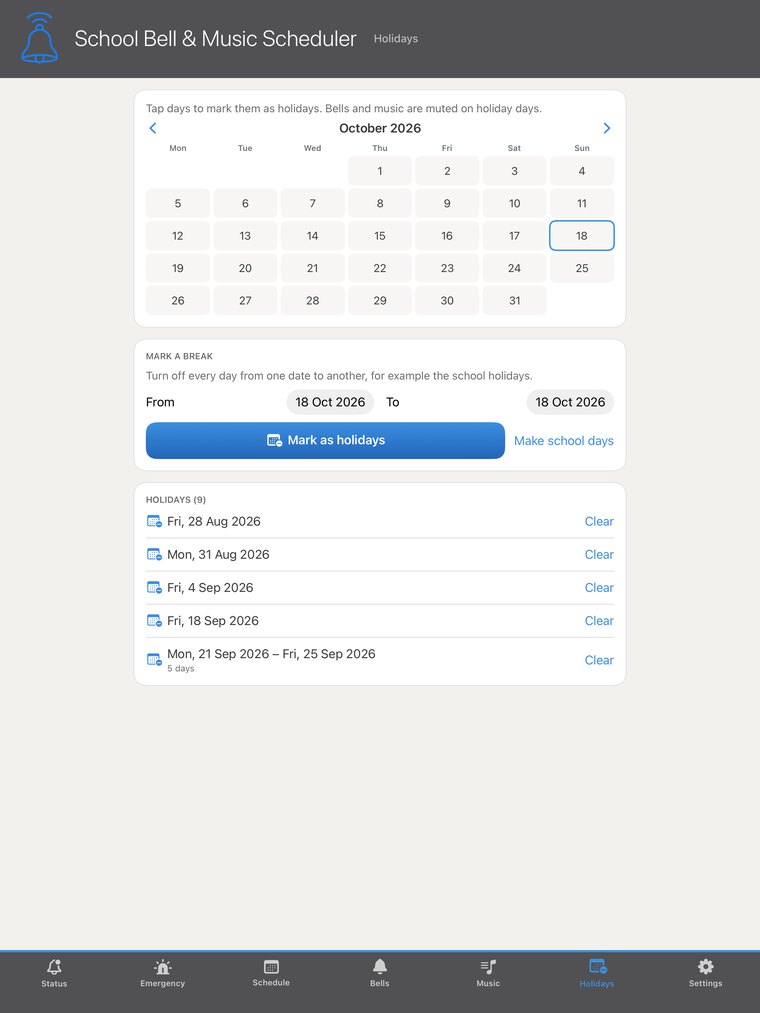
The Holidays tab is a month calendar. Tap any date to mark it as a holiday — every bell and every music event is muted for that whole day, and the idle display shows the school is closed. Tap again to unmark it.
- Mark whole term breaks in a few taps, plus pupil-free days and public holidays.
- Your weekly timetable is never edited — when the holiday passes, everything simply resumes.
10The always-on display
Leave the iPad alone for a minute and it becomes the school display: your school's name above a large, elegant clock, with the date and a subtle note that bells are armed. Any tap brings the controls straight back (or the PIN pad, if the screen is locked).
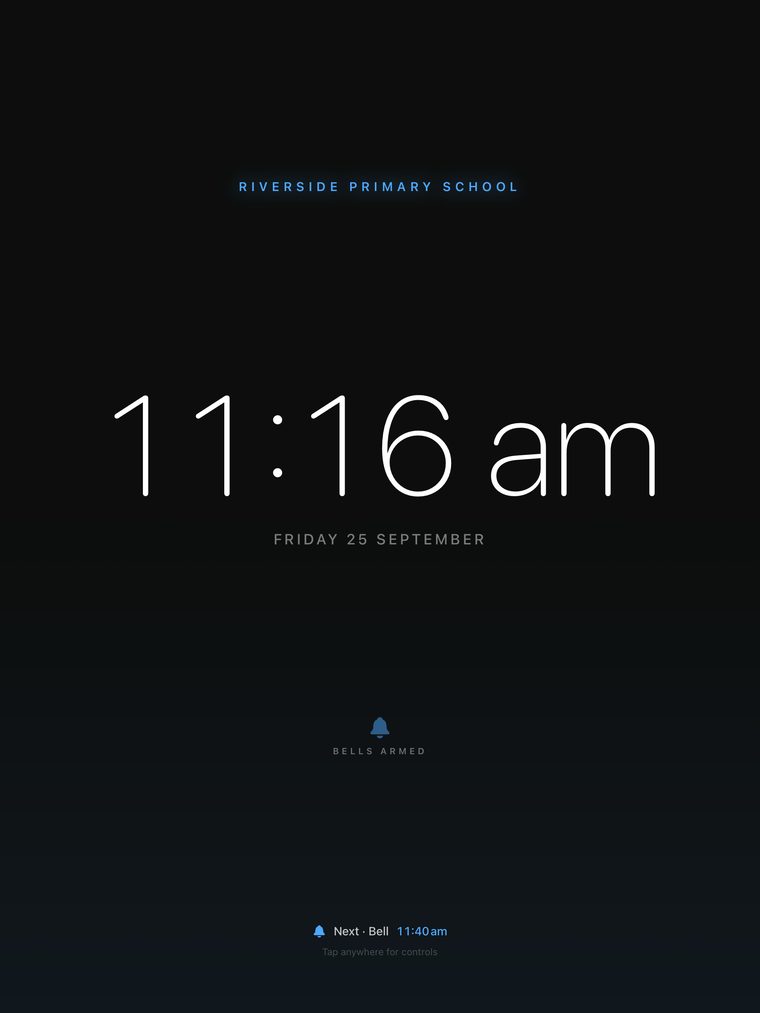
On holiday dates the display notes the school is closed. During scheduled music it shows what's playing.
11The announcer voice
When staff type a message in the iPhone Remote, the station reads it over the PA in the announcer voice. Set it up once in Settings → Station → Announcer voice:
- Pick a Voice — the default is the best Australian voice on the iPad, or choose any installed voice.
- Set the speaking Speed with the slider.
- Tap Test voice over PA to hear a sample announcement through your actual speakers.
12Pairing a staff iPhone
Since version 1.5 the remote is built into the app: install School Bell & Music Scheduler on any staff iPhone and it becomes a remote control for the iPad. Pairing is protected by a code — without it, no phone can touch the bells.
On the iPad station
- Open Settings → Remote Access. You'll see Phone control is on with the station's pairing code.
- Tap Set code to choose your own, or Generate random for a fresh six-digit code.
On the iPhone
- Install School Bell & Music Scheduler on the iPhone from the App Store — the same app as the iPad; on an iPhone it opens as the remote.
- Make sure the phone is on the same Wi-Fi network as the iPad.
- Open the Remote — the station appears automatically. Tap it and enter the pairing code.
- That's it. The phone reconnects by itself from now on — the code is never asked for again.
13Using the iPhone Remote
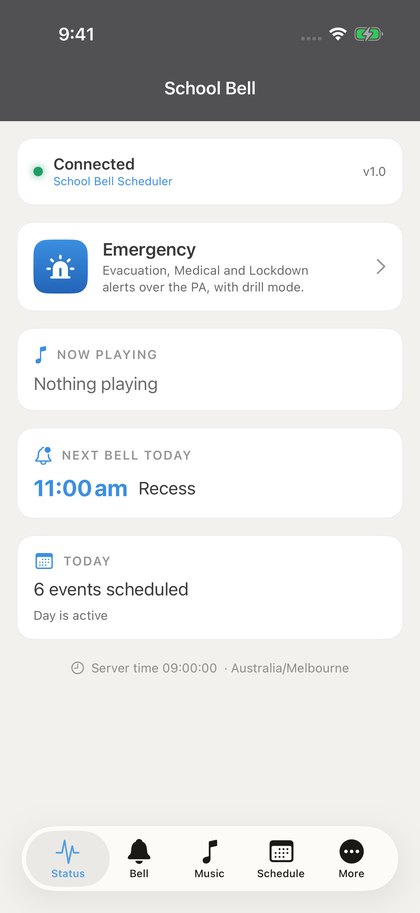
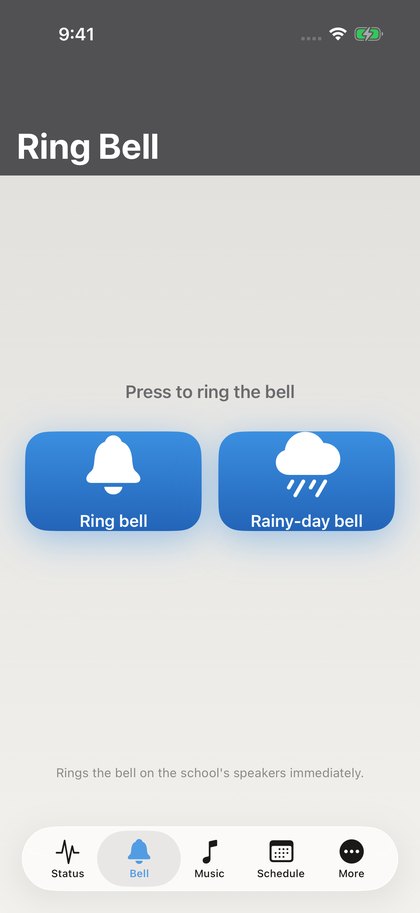
Once paired, staff have the whole system in their pocket, anywhere on the school network:
- Status — a live view of the station: what's next, what's playing, today's timetable.
- Ring Bell — the normal bell or the rainy-day bell, instantly. Perfect for wet-weather calls made from the staff room.
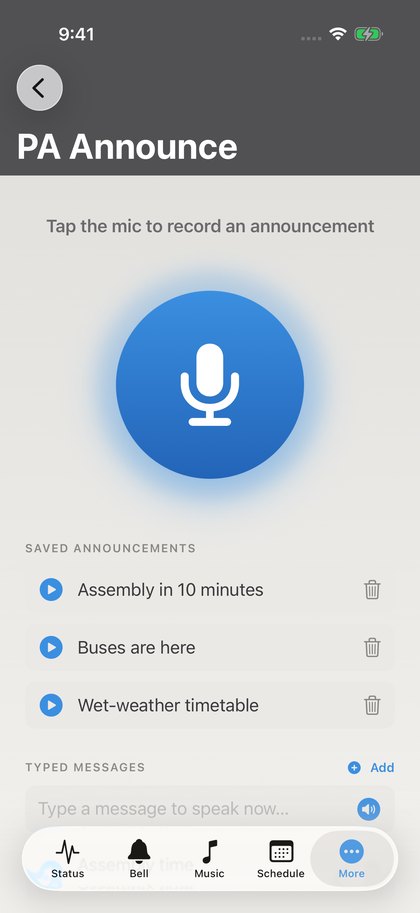
- PA Announce — two ways:
- Record a message in your own voice and Play over the speakers — with an optional Chime before announcement to get attention first. Save to library keeps regulars like "Buses are here" ready to replay in one tap.
- Type a message and Speak over the speakers — the station's announcer voice reads it over the PA.
- Schedule, Music & Holidays — the full editors, same as on the iPad. Fix tomorrow's assembly time from your desk, no trip to the comms rack.
14Locking the iPad (Guided Access)
For an unattended station, use Apple's built-in Guided Access. It locks the iPad on School Bell & Music Scheduler, so nobody can close the app, open anything else or fiddle with the bells:
- iPad Settings → Accessibility → Guided Access — turn it on and set its passcode.
- Open School Bell & Music Scheduler and triple-click the top/side button, then tap Start.
- The iPad is now a sealed appliance: no home screen, no app switching, until the passcode unlocks it. The clock display still comes up by itself and bells keep ringing as normal.
15Backup & restore
Once the station is set up, take a backup — five seconds now saves an afternoon later.
- Settings → Backup & Restore → Export backup saves everything — schedules, holidays, settings, saved announcements and bell sounds — to a single
.bellbackupfile. Share it to email, AirDrop or a drive and keep it somewhere safe. - Restore from backup brings it all back — on the same iPad or a brand-new one. Replacing the iPad in three years is a five-minute job.
Your imported music library is re-imported separately (music files are large; they don't travel inside the backup file).
16Emergency alerts & drills
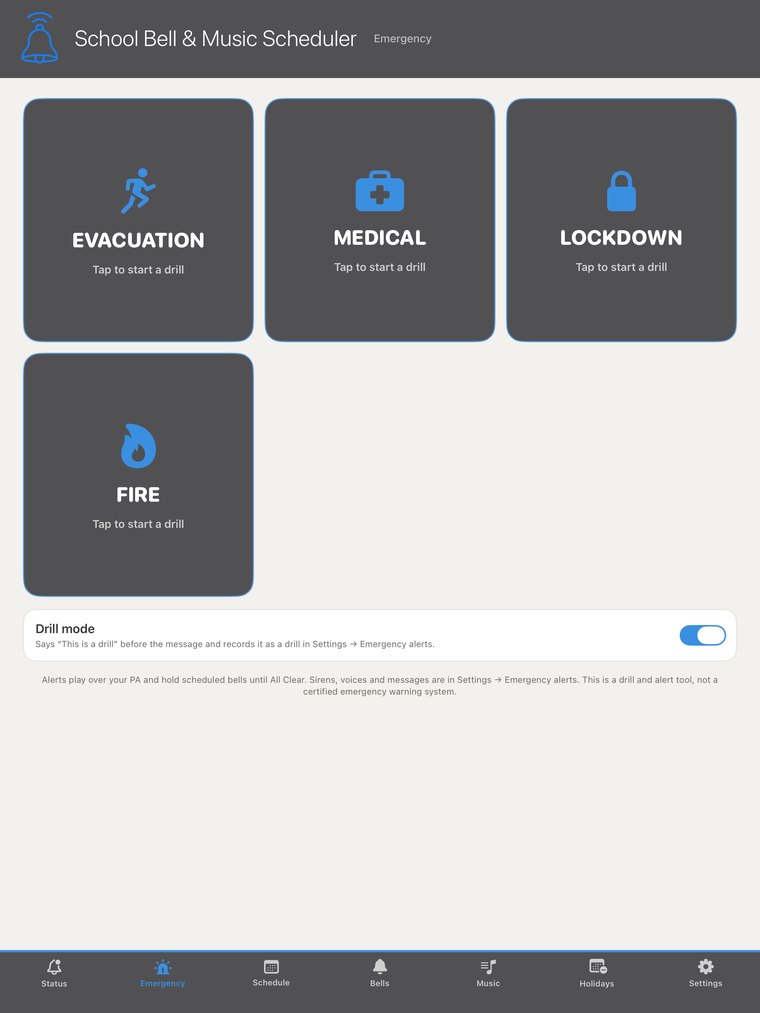
The Emergency tab has big buttons for Evacuation, Medical and Lockdown, plus up to three of the school's own alerts — Fire or Bushfire, for example, each with its own siren and message. Tap one, confirm, and the alert runs over the PA until someone presses All Clear. Bells, music and announcements are held the whole time.
What happens when you start one
- The siren sounds (8 seconds by default), then the spoken message. That repeats twice.
- A short breather, then the message alone repeats every 20 seconds — calmer, but nobody can miss it.
- Then the siren returns and the cycle starts again — until All Clear is pressed on the iPad, on the Status screen, or from any paired iPhone.
- All Clear plays the chime and the all-clear message once, and bells resume.
Drills
Flick Drill mode on before tapping a button. The message starts with "This is a drill", the alert is marked DRILL on screen, and All Clear says "This was a drill". Every drill and real alert is recorded — see section 17, Fire drills & records.
Set it up your way — Settings → Emergency alerts
- Tap an alert to choose its Siren (four built-in sirens, or none), how long it runs before each message, the Voice, and the wording. Play siren and Play message over PA let you hear them first.
- Prefer your own voice? Switch the message to Recorded, tap Record, speak, then Use this recording. In a drill, "This is a drill" is spoken before your recording.
- All clear message — edit the words spoken when All Clear is pressed.
- Ask before starting an alert — on by default, so a knock can't set off the siren. Turn it off for one-tap starts.
- Drills & records — the term schedule, every drill and alert, your wardens and the exports. See section 17.
17Fire drills & records
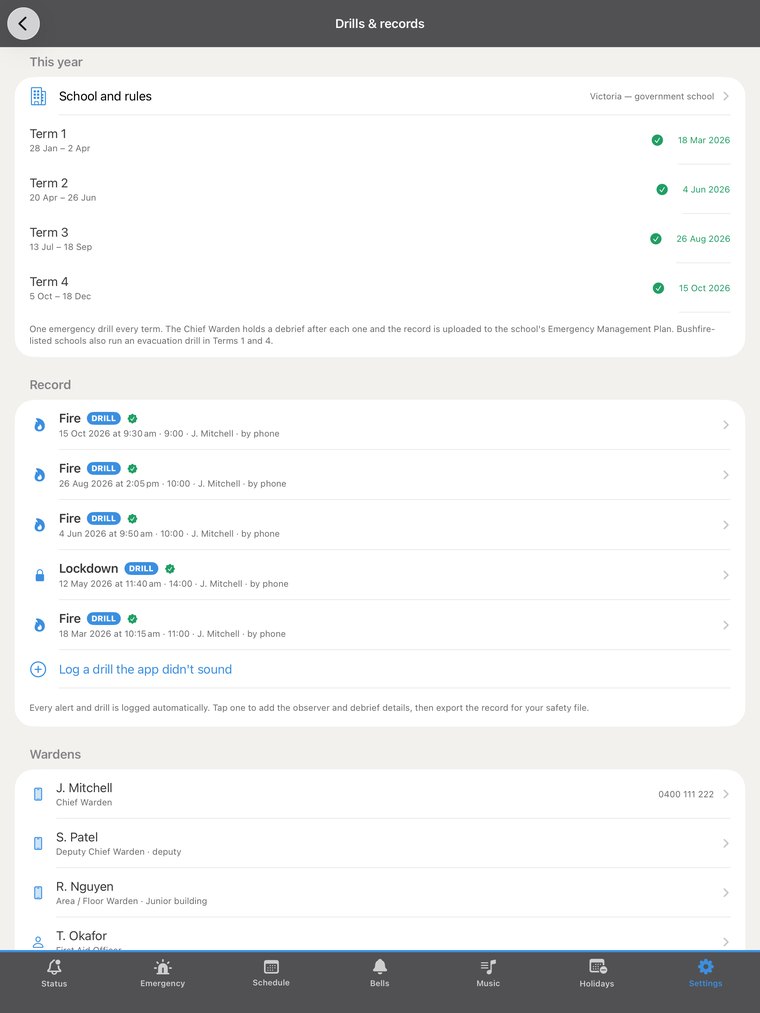
Schools have to run an emergency drill every term and keep a record of it. School Bell keeps that record for you. Everything lives in one place, so it never clutters the everyday screens: Settings → Emergency alerts → Drills & records.
Set it up once
- Tap School and rules and choose where the school is: Victoria — government school, Victoria — Catholic or independent school, Australia — other state or territory, Early learning or outside-school-hours care or Outside Australia. The rule for that region is shown underneath.
- On the Bushfire At-Risk Register (or Category 4)? Turn that on — it adds the Term 1 and Term 4 bushfire evacuation drills.
- Check the term dates against your school calendar. Tap Add a term or Remove to match your year — four terms, three, or two semesters.
- Leave Remind on the Status screen near the end of a term on. You'll see one quiet line in the last two weeks of a term if its drill hasn't been done — nothing else.

Wardens
- The first time a staff member opens the iPhone app after pairing, it asks "Are you a warden at this school?". They pick a role and type their name, and they appear in the station's warden list. They can change it later under More → Settings → Warden.
- Or add wardens on the iPad: Add a warden… with a role — Chief Warden, Deputy Chief Warden, Area / Floor Warden, Communications Officer, First Aid Officer or Recovery Officer.
Running a fire drill
- Turn on Drill mode and tap Fire (or Evacuation) — on the iPad, a warden's iPhone or the office browser.
- When everyone is accounted for, tap All Clear.
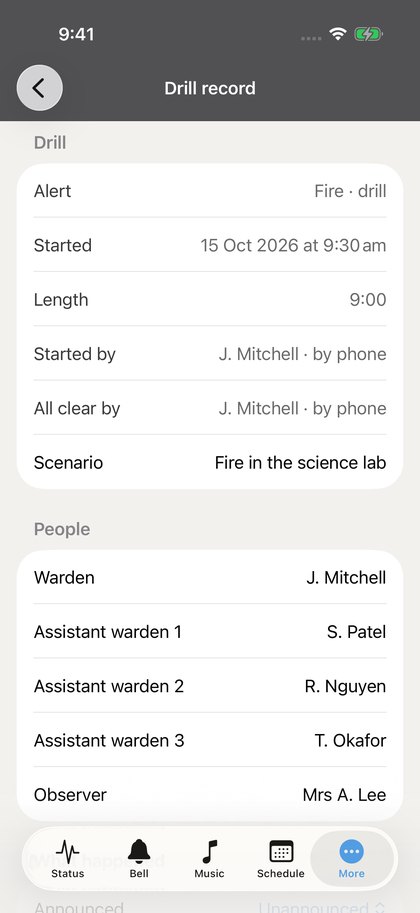
- That's it — the drill is on record. Started from a phone, the warden's name goes straight on it (for example J. Mitchell · by phone) and nobody needs to touch the iPad. Started on the iPad, it asks Record this drill? when it ends so you can fill it in there and then.
Ran a drill with the fire panel instead? Log a drill the app didn't sound adds it to the record.
Filling in the record
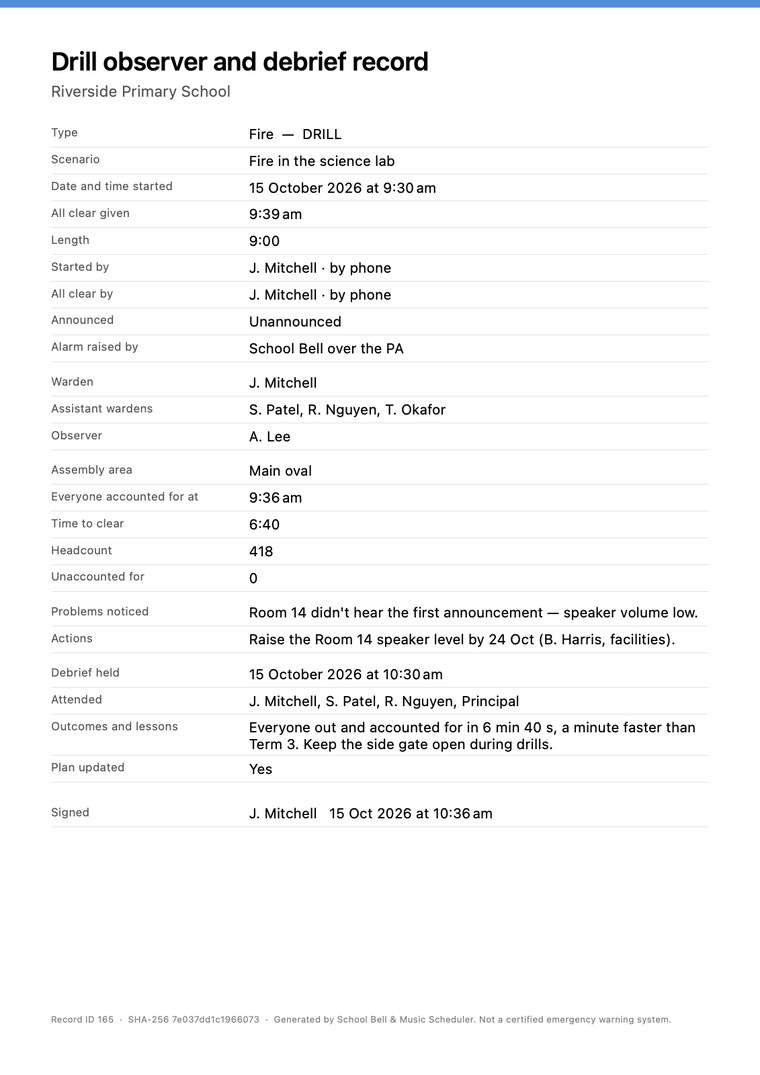
Tap a drill. The Warden is whoever started it; add up to three assistant wardens and the observer, then the scenario, announced or unannounced, how the alarm was raised, when everyone was accounted for, the assembly area, the headcount and anyone unaccounted for, the problems noticed and the actions — who and by when — then the debrief and the sign-off. It saves as you type.
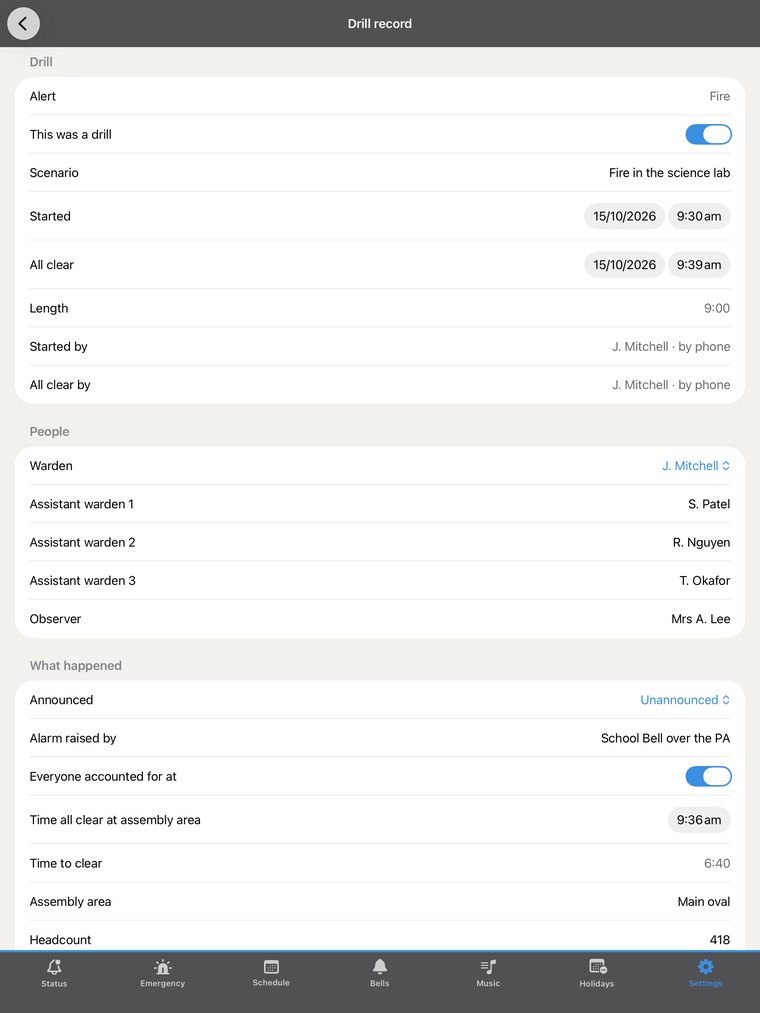
- From a warden's phone: More → Drill records (also under Emergency). Tap the drill, fill it in, then Send this record (PDF). The phone keeps its own copy of every record and copies changes back to the iPad when it's reachable — so the paperwork survives even if the iPad doesn't.
- From the office computer: on the browser page, open Emergency → Drills & records, click the drill, fill it in, then Save or Record PDF.
For the safety file
- Export this record (PDF) — one drill's observer and debrief record, signed and dated.
- Export drill pack (PDF) — the year's term schedule plus one record per drill. Upload it to your Emergency Management Plan portal or keep it with the school's files.
- Export spreadsheet (CSV) — every drill and alert in one table.
18Trial & subscription
- The app is free for 7 days with everything unlocked — enough to prove it on your own speakers.
- After the trial, a simple auto-renewing subscription keeps it running — $19.99/month or $199.99/year (two months free). One subscription per station iPad; the iPhone Remote is free for the whole staff.
- Manage or cancel anytime in the Apple ID subscription settings. Moved to a new iPad? Settings → Restore Purchase.
19Getting help
The same guide lives inside the app (Settings → Help & Feedback → User Guide), and Send Feedback emails us directly — we read every message and we're happy to help with setup, hardware questions, or anything else.